1. Sign in to your Microsoft Entra ID account in Microsoft Entra ID portal
2. Select Microsoft Entra ID Active Directory
3. Go to the Manage subheading. Then click on Enterprise applications
4. Click New application
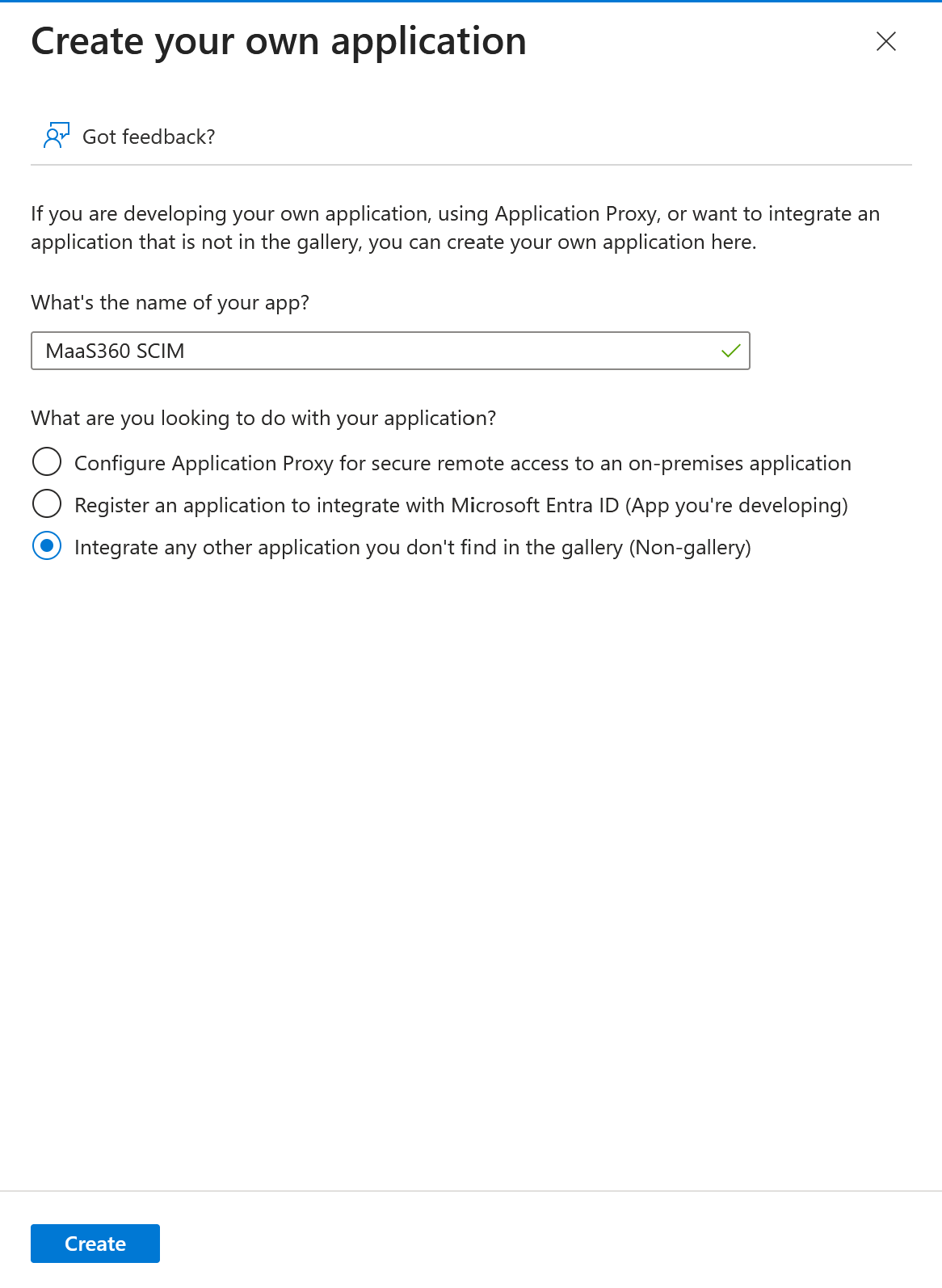
5. Create your own application, name it MaaS360 SCIM
(Leave “Integrate any other application you don’t find in the gallery (Non-gallery)” selected).
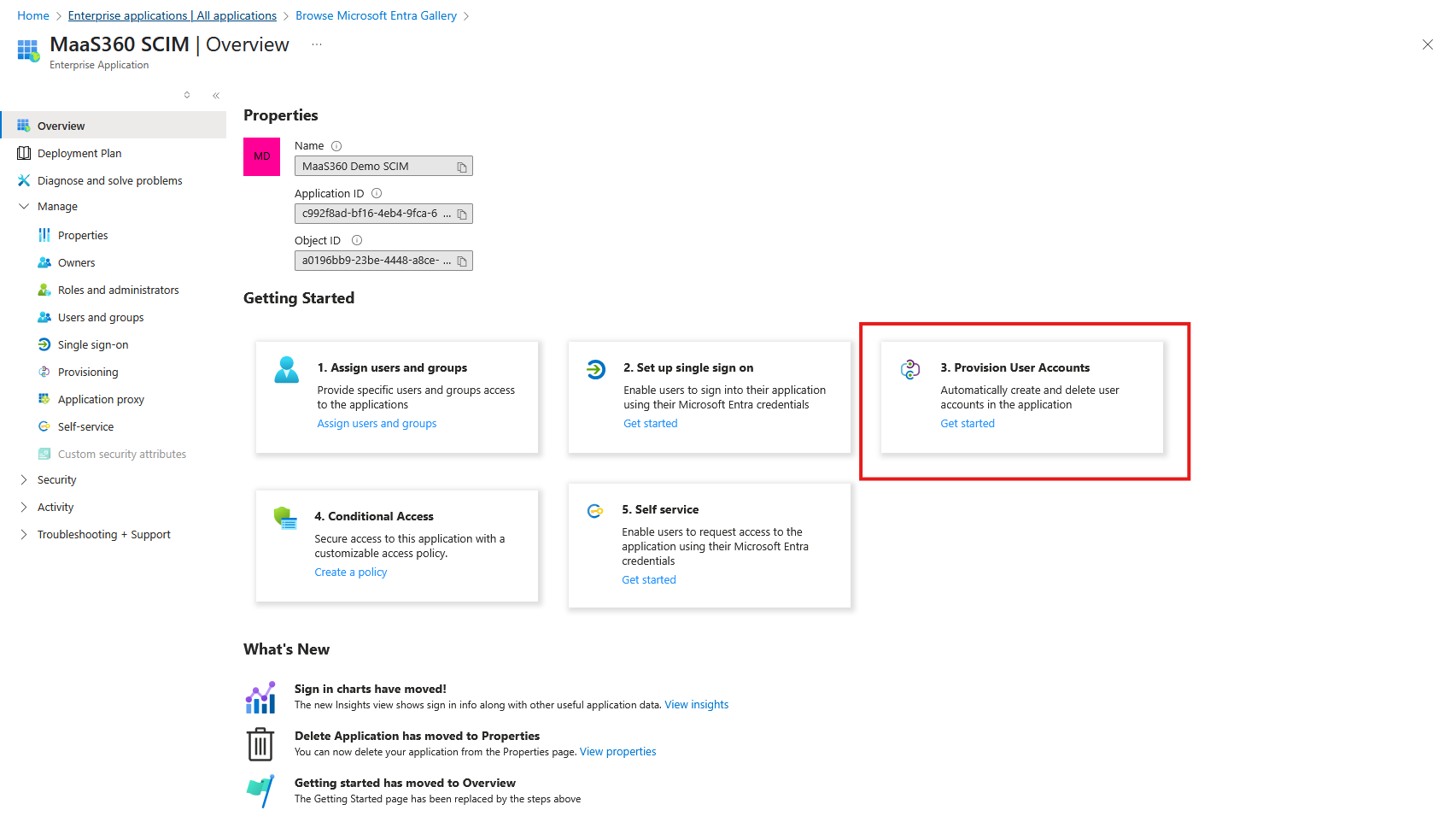
6. In the new app, click Provision User Accounts
7. Click Get Started
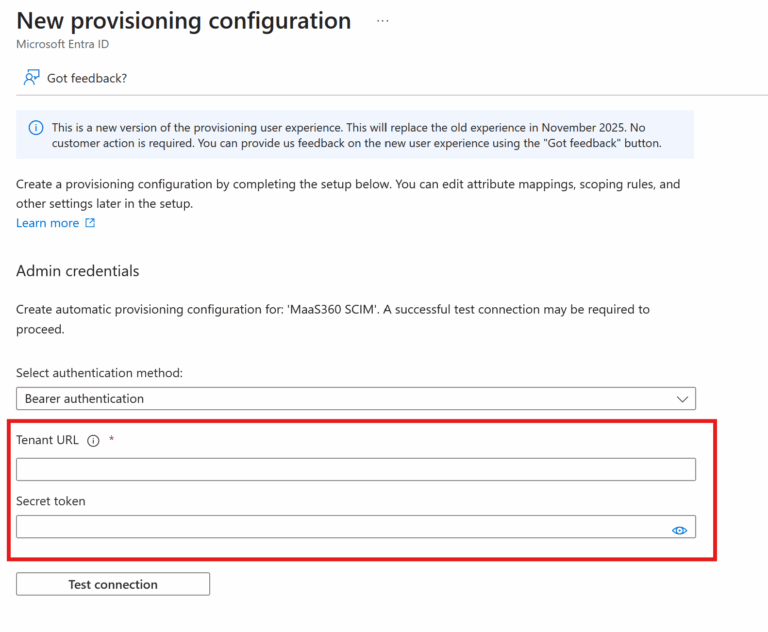
8. Click New Configuration
9. Here, enter in the Tenant URL and secret as given to you by the TechSafe Team.
10. Click Test connection and then Save
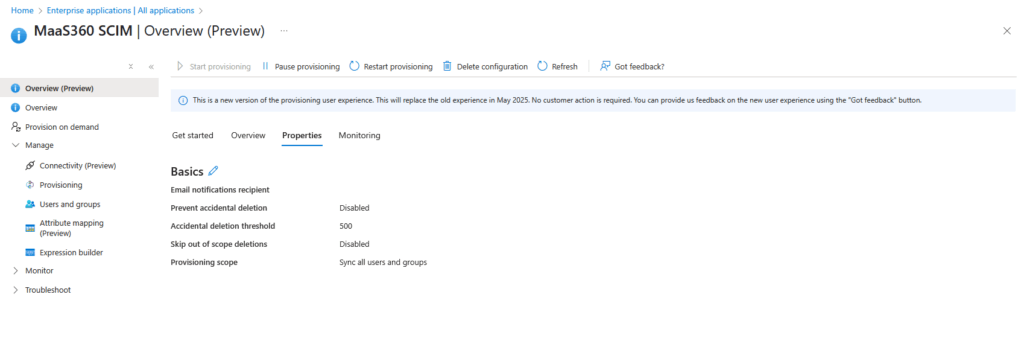
11. Go back to the Overview if not already there and select Properties
12. Ensure Provisioning scope is set to Sync all users and groups. If not, click the pencil icon and change it. If you do not want it set to all users and groups, please follow the steps below. Else skip to step 16.
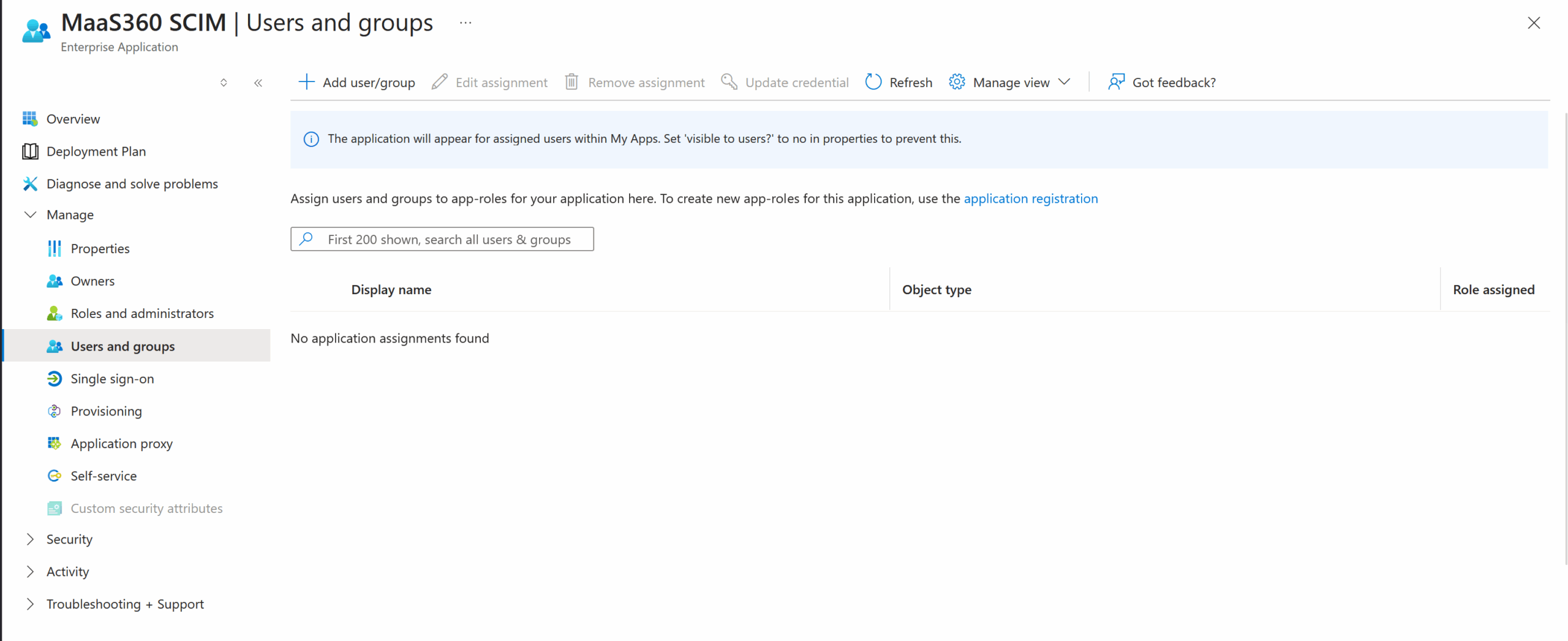
13. Go to Manage > Users and Groups and click Add user/group. Add in the users you are wanting.
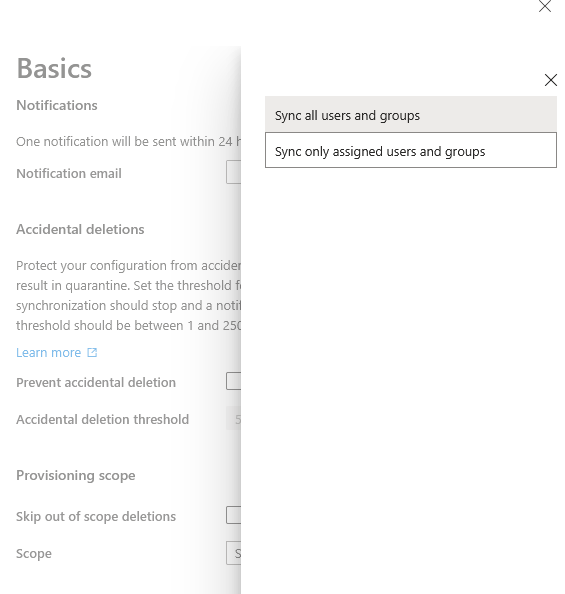
14. Go back to Preview and click the pencil beside Basics as seen in the screenshot below
15. Click Scope and select Sync only assigned users and groups
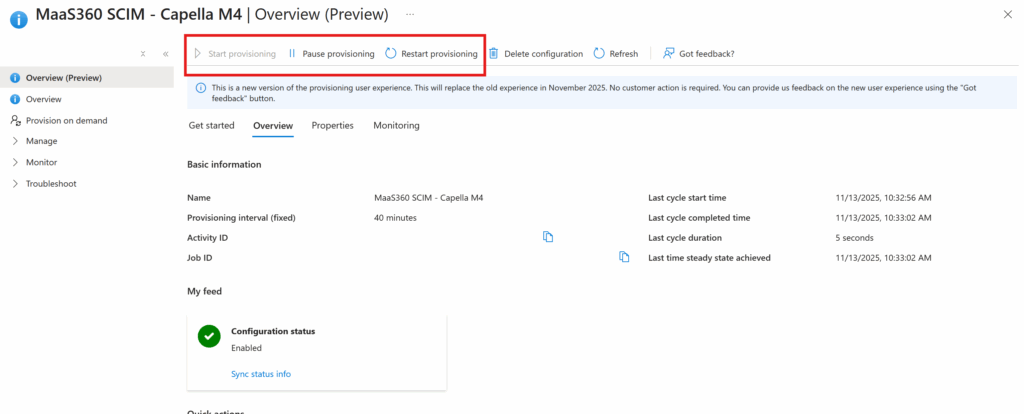
16. Now, you can go to the Manage > Provisioning section and click Start provisioning to start the provisioning of users into TechSafe.